
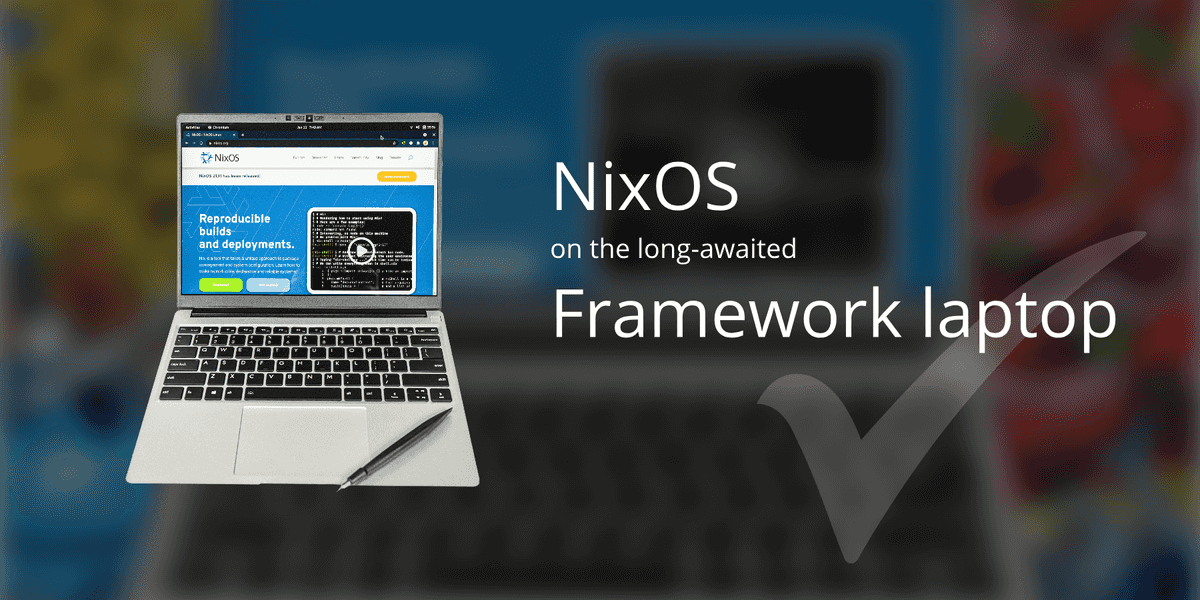

A new job often comes with a new laptop, and in my case, I was given a Framework Laptop DIY Edition. My objective was to install and configure it with NixOS. In this article, I will share my initial impressions of the hardware and walk you through the installation process of NixOS on a Framework Laptop DIY Edition.
For those unfamiliar with Framework computers, they are relatively new to the market and are known for their upgradability, repairability, and customization options. With the DIY edition, you can choose the operating system, processor, memory, and disk types. Additionally, you can expand the configuration with pluggable expansion cards for more connectivity and storage options. This flexibility not only allows for customization but also extends the lifespan of the laptop as it can be upgraded to meet changing needs over time.
When my order arrived, I was pleasantly surprised by how light the box was. Inside, I found the laptop, parts, a compact charger, individually packaged expansion cards, and a convenient screwdriver for assembly. The aluminum frame looked sleek and sturdy, comparable to my MacBook Pro. Each part inside the frame had a barcode that could be scanned with a phone to view instructions on your browser.
To assemble the hardware, you need to install the NVMe storage drive, RAM memory cards, expansion cards, and Wi-Fi card. The installation process requires opening the frame with the provided screwdriver or a small Phillips screwdriver. In the latest DIY edition, the Wi-Fi card comes pre-installed, simplifying the process. Overall, the hardware installation is straightforward, and once completed, your Framework Laptop DIY Edition is ready for the NixOS installation.
Before installing NixOS, it’s recommended to test the hardware components by installing another operating system like Ubuntu. This step ensures that everything is functioning correctly before proceeding with the NixOS installation.
To install NixOS, you’ll need to download the NixOS ISO image and create a bootable USB drive. Once the USB drive is ready, you’ll need to access the Setup Utility program by pressing F2 during startup. From there, you’ll disable Secure Boot and select the USB drive as the boot option. The NixOS installer will then run from the USB drive, allowing you to choose the installation options.
During the installation process, there are some specific steps and considerations to keep in mind. For example, networking in the installer may not work with the Framework laptop, so it can be skipped. The partitioning and formatting options will depend on your specific laptop configuration, and the NixOS Manual provides guidance on these steps. Additionally, you’ll need to create a “configuration.nix” file that defines the services and packages for your computer.
Once the installation is complete, you’ll need to set the root password. After rebooting, there may be some additional steps to enable Wi-Fi and connect to a network. It’s also worth noting that Bluetooth audio devices may not work properly, and external display settings may need to be adjusted manually.
In terms of hardware, the Framework Laptop DIY Edition has several positive aspects. It is lightweight, compact, and easy to assemble. The keyboard is comfortable and features a backlight for working in low-light conditions. The trackpad is spacious and responsive. Performance will vary depending on your chosen configuration, but in my experience, it worked well. The ability to swap expansion cards for different connectivity options is a notable feature, and the fingerprint reader functions flawlessly. The display brightness and contrast are satisfying in the latest versions.
However, there are a few areas that could be improved. The speakers may not deliver the best sound quality, and there are some limitations with Bluetooth audio devices. Despite these minor drawbacks, overall, the Framework Laptop DIY Edition offers a customizable and user-friendly experience.
In conclusion, installing NixOS on a Framework Laptop DIY Edition may have some specific steps and considerations, but with the right resources and guidance, it can be successfully accomplished. The flexibility and upgradability of the hardware make it an attractive option for those looking for a customizable laptop.