

There are a few things you should do first when you are using a new Samsung smartphone. One of those is downloading and installing Good Lock. Whether you own a Galaxy S24 model, Galaxy Z Fold 5, or an older Samsung phone, it’s an app that opens a near-endless array of software customization options. But what is Samsung Good Lock, and why is it important? Learn more about its modules’ features, availability, and installation steps below.
What is Samsung Good Lock?
Samsung Good Lock is an app with several downloadable utilities — or modules — that can customize your device or provide additional functionality. In short, Good Lock is a customization suite that makes Samsung’s One UI feel like a custom ROM.
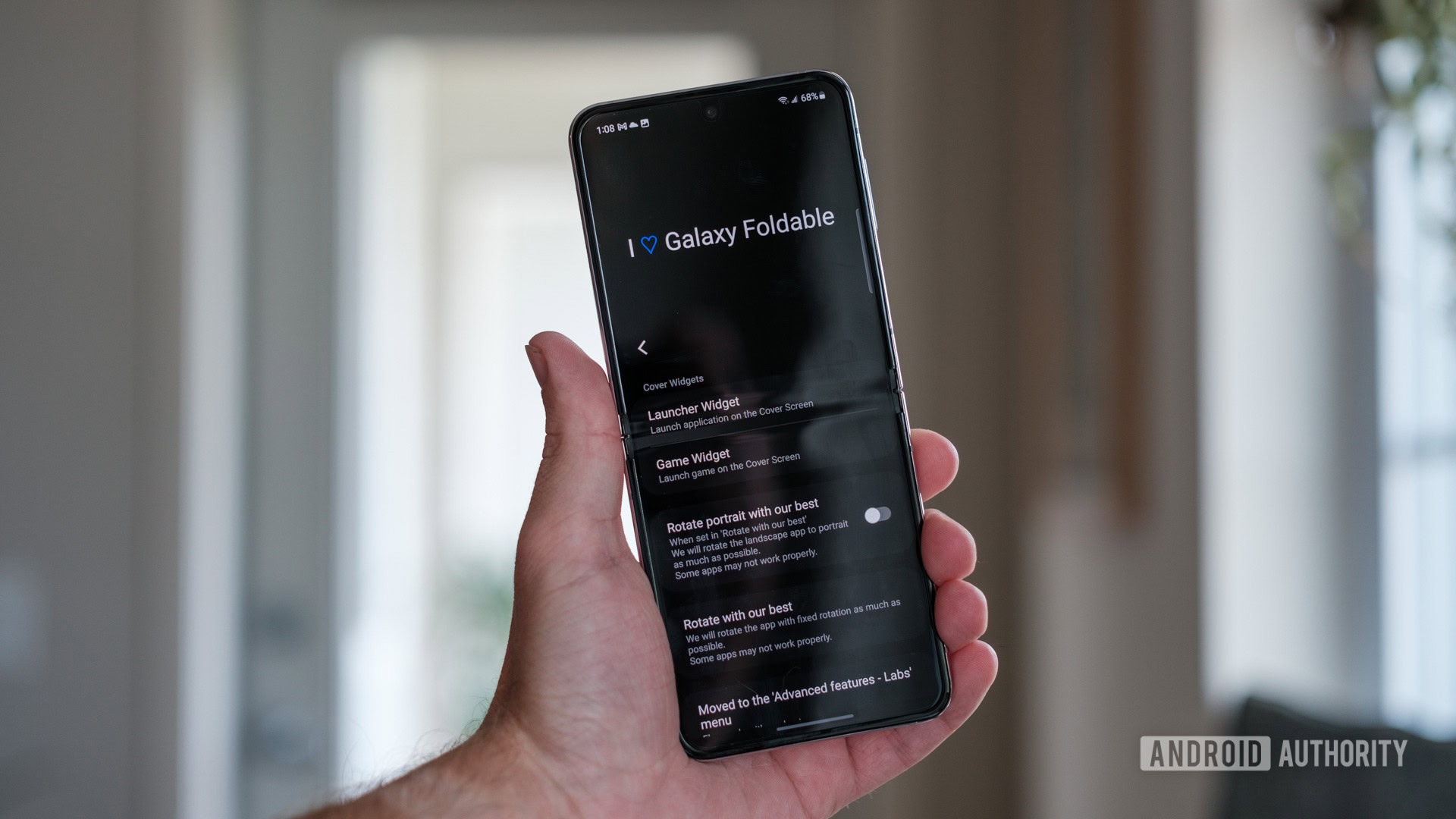
The app has been around since the Samsung Galaxy S7 series and only included options to tweak lock screen elements on Samsung’s original TouchWiz UI — hence its name. However, Good Lock has been upgraded and modified by Samsung plenty since. In its current form, it provides customization features for lock screens, notifications, and even the stock clock face. It also enhances multitasking, the S Pen, and lets you run apps on the Galaxy Z Flip 5’s cover screen.
Notably, Good Lock doesn’t come with all these modules preinstalled. Instead, users can choose which they’d like to install through Good Lock.
Good Lock features
Let’s talk briefly about each module and what it does. All modules below support One UI 5.1 or newer running on Android 13 or newer. Most also work on older versions of Samsung’s One UI, but some, like Camera Assistant and RegiStar, require the latest version. Edge Lighting+ requires One UI 5.1.1. The modules are rather simple and don’t require a ton of explanation.
Camera Assistant
Camera Assistant adds a handful of tweaks to the One UI camera software. Users can toggle on Auto HDR when the phone detects the right conditions, activate Auto lens switching that lets the phone choose the best lens for any given shot, and even record video in photo mode by holding the shutter button. Other settings let users snap additional shots after a timer runs out and increase the speed of the shutter by minimizing the number of frames captured. Users can also toggle Clean preview on HDMI displays, which removes settings and buttons when showing image previews on a large screen.
Clockface
Clockface lets you change your lock screen or AOD clock. Clockface lets you customize the clock on your always-on display or lock screen. A couple of dozen options range from analog to digital and even text. I quite liked the panda bear clock you can choose as well. Most of the clocks let you customize things like color, some of the items, and other elements. Once done, set the clock, and it’ll appear on your lock screen or always-on display. All the clocks you customize are available under the My Clocks category, accessible from the bottom of the screen.
[And continue rewriting the rest of the content following the same format.]