
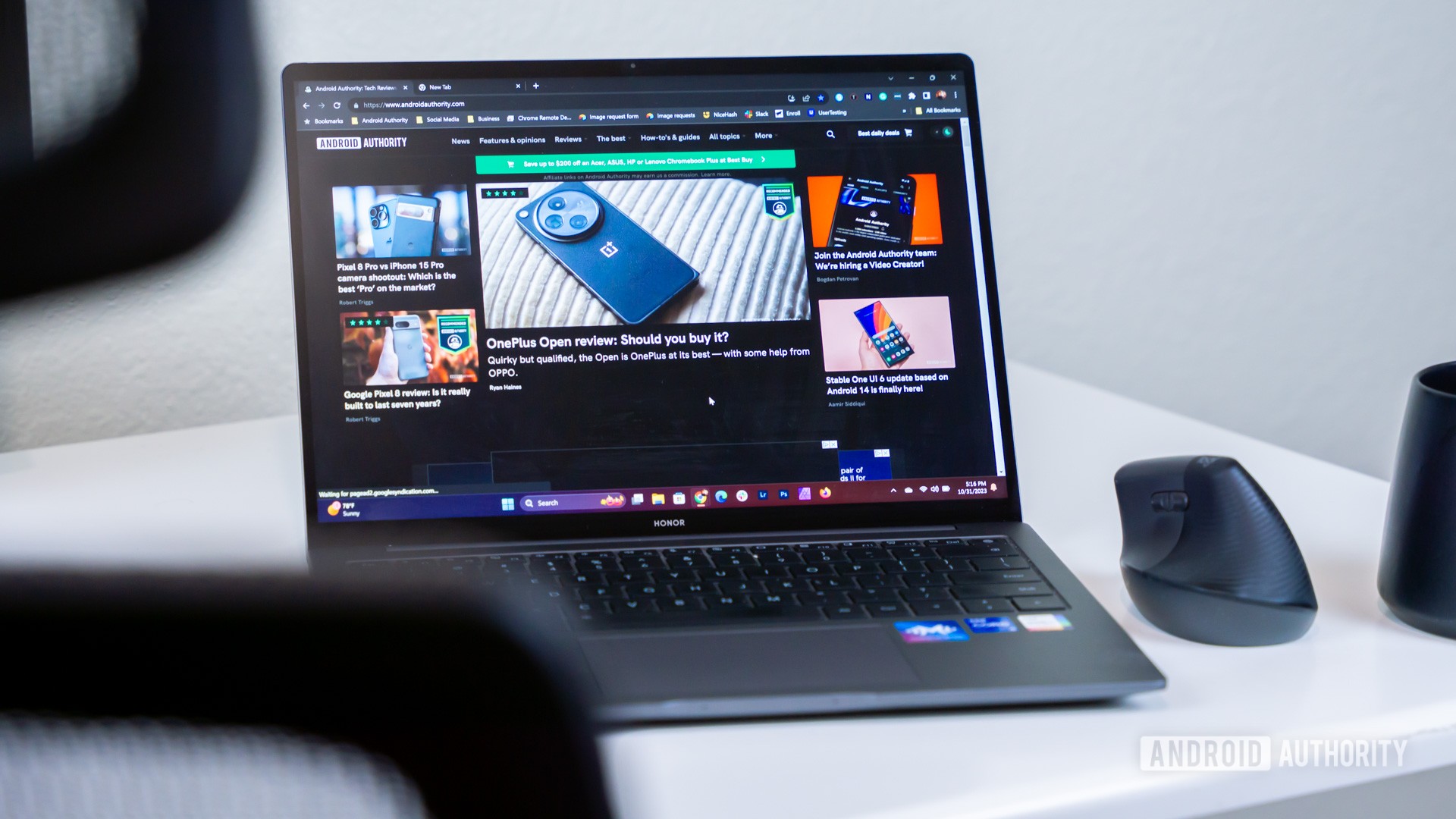

When using Chrome, especially on Macs, it is known to be a memory hog. Google has made efforts to improve this issue, but “out of memory” errors can still occur. Here are some steps you can take to fix these errors:
1. Check your RAM: You should have at least 16GB of RAM on your computer to handle a standard number of Chrome tabs. If you have 32GB, that’s even better, but if you only have 8GB, you may need to limit the number of tabs you have open and consider a RAM upgrade or a new computer.
2. Refresh the affected tab: If you have enough RAM, refreshing the affected tab may fix the error without any additional steps.
3. Close unnecessary tabs: Closing any unnecessary tabs and refreshing the broken one can help free up memory.
4. Enable Memory Saver: Make sure this feature is enabled in Chrome settings to automatically free up RAM from tabs that haven’t been used in a while.
5. Check for Chrome updates: Update Chrome to the latest version to potentially improve memory usage.
6. Clear Chrome’s cache: Clearing browsing data and cached images and files can rule out cache issues before proceeding with more complicated troubleshooting steps.
7. Remove unused extensions: Remove any irrelevant or unused extensions from Chrome to free up memory.
8. Restart Chrome and your computer: Restart both to potentially solve any temporary glitches or system-level problems getting in the way of memory usage.
9. Disable hardware acceleration: Try disabling hardware acceleration in Chrome settings if other steps haven’t worked. This can help if your video card/GPU can’t keep up with Chrome’s demands.
10. Increase available virtual memory: If you are using Windows, you can control the amount of virtual memory available on your computer, which can help manage memory usage.